If you want to start a new business in 2026, running an e-commerce store on Shopify is one of the best moves you can take.
Shopify is a beginner-friendly ecommerce platform that lets anyone launch an online store without coding experience.
You can build and launch a complete store within an hour, even as a complete beginner.
Setting up a Shopify store is simple, but generating sales is where many beginners struggle.
This updated post not only shows you how to create a dropshipping store, but also how to launch a store that is optimised for conversions and for long-term growth.
Whether you’re selling a digital product start a dropshipping store, this guide will walk you through all that you need, from setting up an account to generating your first sale.
Looking for online course on how to build a profitable shopify dropshiping business? You may want to check the eCom Success Academy
Why Shopify in 2026?
Shopify is going beyond a simple online store builder into an all-in-one ecommerce ecosystem.
Whether you’re a beginner or an experienced seller, you get access to tools, automation and all that you need to build, grow and scale your ecommerce business faster than before.
Why Shopify stands out among others in 2026:
AI-Powered Store Creation: Shopify has introduced AI to help users fast-track their success. With AI:
You can design a store automatically
Write product descriptions in seconds
Get suggestions from AI on branding and layouts
Beginner-Friendly but Powerful: Shopify is a beginner-friendly platform, even with:
No coding skills
No design skills
No prior eCommerce experiences
Built for Mobile and Speed: Shopify is fully optimised for mobile devices as more shoppers use mobile. It comes with:
Mobile-responsive themes
Fast-loading pages
Checkout experience
Multi-Channel Selling: With Shopify, you can sell everywhere. Aside from selling on your website/store, you can integrate your store with social platforms like TikTok, Facebook and Instagram.
Massive App Ecosystem: You get access to thousands of apps that let you extend your store’s functionalities.
I think Shopify now has ia own email marketing tool integrated, so that you don’t need a third-party email marketing tool.
Live Workshop: How His Students Made Over $400M In Affiliate Commission
class="wp-block-heading" id="what-is-shopify-store">How To Set Up A Shopify Store In 12 Steps
It is time to take the first step toward building a successful Shopify store for your eCommerce business.
Before we go into how to set up a Shopify store, what is a Shopify store all about?
What Is Shopify Store?
Shopify is an eCommerce platform that allows anyone to build and manage an online store—selling physical and digital products and growing their business.
It integrates with many tools and provides the path to sell online, in-person and globally. Users get access to resources to help them start and grow their businesses without any stress.
With Shopify, you can build a professional online store, accept payment, manage inventory and ship orders within one dashboard.
Shopify is used by entrepreneurs, marketers, and global brands to start, grow, and scale their eCommerce businesses.
Now, let’s start setting up our Shopify store, customising it, and adding products.
1: Create a Shopify Account
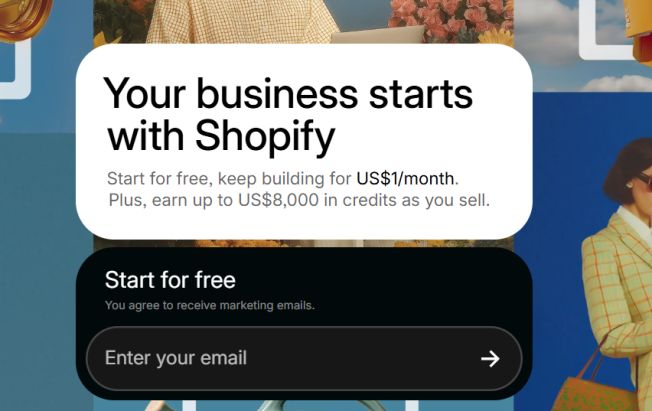
As a beginner, you must create an account to set up a Shopify store. And you can start with a free for 3 days.
Shopify also offers $1 for 3 months after the three-day free trial ends. This will allow you to test all the advanced features before you invest more money.
It allows you to try the Shopify platform free for 3 days and then $1 per month for 3 months.
After you enter your email address, they will ask you onboarding questions about your Shopify store.
In the next step, you will answer questions about what you want and would like to sell.You can choose an online store.
On the next page, you will be asked what to sell. There are many options you can choose from. Select the one that fits your business and click nest.
On the next page, you can choose a plan. This is very important, so choose carefully.
Select your Shopify subscription plan.
Shopify has three main plans, so choose the one that fits your needs. I suggest starting with the basic plan.
After selecting the plan, it will ask to choose a payment option.
Then, you will find yourself inside a brand-new Shopify account.
2. Get Familiar with the Shopify Admin panel
You will see the following features on the admin panel: just play around.
Order: View and manage your Shopify store orders, including reviews and cancellations
Products: Add and edit your products, including uploading images, writing product descriptions, etc
Collections: Contains related products where customers can find more than one product.
Customer: Contains the list of customers and their contact information.
Analytic: Check the number of sales, revenue, product performance for certain periods etc
Marketing: Where to configure store marketing, such as Facebook advertising, Shopify email marketing, social posts, SMS, etc
Discount: Create and manage discount codes for your products, such as free shipping etc
Apps: Manage and install apps to improve Shopify store functionalities.
3. Select Store Theme
Shopify sets up a default theme on the theme page when opening an account. And if you want to change the theme to premium or another free one, you can do so.
Click on the online store > select themes. Then, scroll down to see the list of popular free themes. You can view the demo or click on try theme to install it.
It will be added to the theme library section on the theme page.
Before installing, you can preview themes to see how they look.
Now that you have installed a new theme or prefer the default, the next step is to add products.
4. Add Products to your Shopify store
Once you have installed the store theme, the next step is to add products.
On the contrary, you can also add products before adding a new theme. Many experts suggest adding products and designing your store around them to make them look better.
To add the first products, go to products > add your products in the dashboard.
Then click on add product. You will see where to add titles, descriptions etc
Here is the key information about your product.
Product tile
Description
Company
Pricing
Cost per item
Inventory
Shipping
Media
Search engine listing review
Product Status
Etc
Let’s go through each of these one after the other.
Product Title
Customers will see this when they land on your store or in Google search results.
Make sure it is clear, accurate and engaging.
Product Description
This is where you will explain details about your product.
A good description is crucial, so be strategic and clear to the customers.
Product Media
It gives options to add photos and videos of your products.
Make sure the images and photos are of high quality. Check the requirements and follow the guide to make the Media stand out.
To improve SEO, save images and photos with the appropriate text.
Pricing
This is where you will name the price of your product.
Ensure a balance is maintained, check other stores with the same products and the pricing page.
Don’t forget, there are some factors to consider, such as shipping costs. Employee costs etc
Product Shipping
If you’re selling physical products, you will need this section to fill the weight and customs information.
Search engine listing review
This section is for SEO to help your product page rank on search engines.
The most important things here are your page title, meta descriptions, and URL.
When filling this section, performing keyword research for product titles and descriptions is essential.
SEO tools like Keysearch and Semrush are great for finding low-competition keywords that can rank on the first page.
Product Status
This is where you will activate your store after adding all the information and being satisfied.
When every setting has been completed, go to the status and make it active.
To Edit a Product
You can also edit a product from your store.
Go to product
Click product name of the product to change
Modify the product and click saves
Edit search engine listing review
Go to products, click the name of the product to edit
In the search engine listing review, click Edit Website SEO
Enter a description and click save.
5. Create your store pages
Now that your store is live and has all the settings, the next thing to do is to create important store pages.
About Us
FAQs
Policy pages
Contact page
A blog
To create a page,
Go to online store > pages, and click Add page.
Then, fill in all the information, such as content, SEO info, etc.
To create a blog post, go to the online store> blog posts and click create a blog post.
6. Add Navigation Menus
Navigation makes it easy for visitors to visit other pages on your store.
To add navigation, go to Online Store > Navigation.
You will be able to create and manage all menus for your store.
You can also add a URL redirect. Click on the Create menu and follow the instructions.
7. Set Up Payment & Checkout
Below are the steps to set up Shopify store payment.
This software will process credit card purchases on your e-commerce store.
Shopify has over 100 payment gateways from which you can accept payment.
Shopify payment is only available in certain countries, so check it out.
To configure payment, go to Settings> Payment> choose payment in your Shopify dashboard, and then follow the provided instructions.
Activate Shopify Payment: From the payment page, click on activate payment.
Provide business and banking details: Make all the information accurate.
Set up your store currency: Shopify integrates with many currencies. Select the appropriate currency before making sales.
8. Connect your domain
This is where you can configure your custom domain.
This is crucial, and these steps will make your store go live.
You can use the Shopify URL, but it is not recommended if you want to set up a Shopify store and build a reputable brand.
Having your domain set up will be much better, like yourstore.com.
You can find reputable domain registrars such as Namecheap to register your domain.
You can buy directly from Shopify, but I suggest another domain company.
To configure a custom domain for your Shopify store, go to Settings > Domains in your dashboard.
If you prefer to buy from Shopify, click Buy New Domain and follow the instructions.
If you use a domain Name Company like Namecheap, click Connect Domain and follow the instructions.
9. Set Up Shipping Rates
Go to settings > Shipping and Delivery to set up the shipping rate.
There are many options here as you can see.
Under shipping and delivery, you can create a new profile and choose where you ship and the shipping cost.
General: Setting shipping rates for domestic and international.
This may not apply to everyone. Before setting a tax rate, determine if you want customers to pay taxes on the products they buy in your store.
To get everything done, you should consult your tax advisor.
11. Test Your Shopify Store
Before launching your Shopify store, you must place a test order and see how it works.
Go to settings > Payment > from the Shopify dashboard and click edit.
On the checkout, mark use the test mode option and click save.
To test the transaction, go to the online store, then add the product to the cart.
Follow the checkout steps as a customer.
You will not be charged during the test mode, but will follow the same steps as a customer.
And if everything goes well, congrats, your payment gateway was set up successfully.
12. Launch Your Shopify Store
Now that everything is set up, you can make your store accessible to the public.
The first step is to remove the password protection.
From the admin dashboard, go to online store> preferences.
Click on Remove password.
Removing passwords allows anyone to browse and shop on your Shopify store.
Now, you have completed all the steps to set up a Shopify store and make it live.
After publishing a Shopify store, there are more things to do, such as marketing, SEO and other promotions.
A Final Thought on How to Set Up a Shopify Store
Now that you have set up A Shopify store, add products and make it go live.
It is time to start store promotion and attract visitors ready to buy from your store.
Setting up a Shopify dropshipping store is easy if you follow the above steps.
There are many ways to promote your e-commerce store, such as SEO, YouTube promotion, content marketing, and social media.
If you want to grow your store fast, I advise trying PPC using Google Ads and other social media platforms, such as Facebook and Instagram ads.
Important Shopify Apps to Install
Below are a few of the best apps you can install to help your store stand out.
You can install email marketing and automation tools such as Klaviyo and Omnisend
Reviews & Social Proof like Judge.me and Loox
Dropshipping & Product Sourcing: You can check the DSers and Spocket
You can also read the list of the best Shopify apps to use for your store.
FAQ
How much does it cost to set up a Shopify store?
Shopify offers four main payment options.
Basic: The basic plan costs $32 per month. Best for beginners and small businesses
Shopify: It costs $92 per month. It is best for medium-sized businesses and small teams.
Advanced: It costs $399 per month. Best for large businesses.
How long does it take to set up a Shopify Store?
When setting up a Shopify store, some factors to consider are experience, the complexity of the store, and the number of products.
Setting up a Shopify store may take 3 to 4 days. You need to continue to optimise and improve the store functionalities.
To fast-track your e-commerce success, check my eCom Success Academy review. A training program that teaches you how to build a profitable dropshipping business.